
Android Auto™
How to use the Mazda Connect screen and Android Auto (TypeB)
CAUTION
- - For information on how to connect to and use an Android™ phone, check the Mazda Connect Owner's Manual installed in your vehicle.
- - Android Auto is provided by Google. Terms of use of this application is conditional upon acceptance of the Android Auto of Terms of Service.
-
- Regarding device requirements, a phone must be running Android 9.0 or higher to use Android Auto. The Android Auto app comes pre-installed on these devices; therefore, you do not need to download it separately.
For additional setup guidelines and requirements, please see public support page:
https://support.google.com/androidauto/answer/6348019 - - When using Android Auto, vehicle data such as location information and speed will be transferred to the smartphone. Please check Google's privacy policy for details. Privacy Policy
How to use the Mazda Connect screen and Android Auto (TypeB)
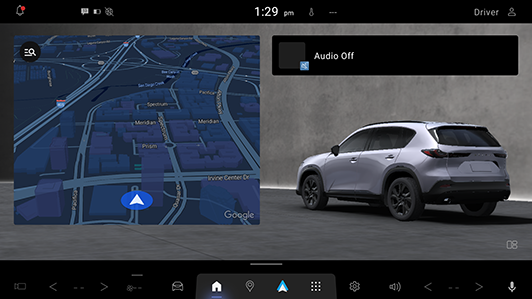
The following Mazda Connect screen is eligible.
Connecting an Android phone
You can connect via USB or by wireless connection.
There is no difference in functionality between USB and wireless
connection.
-
● USB Connection
Insert the original connection cord (USB) of your Android phone into the vehicle's USB port and connect to your Android phone.
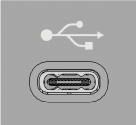
*The location of the USB port differs depending on hte vehicle model.
NOTE
- - Insert and unplug the USB port vertically to the USB port.
- - To use Android Auto, Bluetooth must be enabled.
- - The parking brake must be engaged with connecting the Android Auto device for the first time.
- - When setting the Device Connection Status of a connected Android phone to “Never Enabled”, Android Auto will not activate even if your Android phone is connected to the vehicle’s USB port. When you want to use Android Auto, change the setting.
-
● Wireless Connection
You can connect your Android phone to Mazda Connect via Bluethooth or Wi-Fi. (However, it may not be supported depending on the country of use.)
-
● Connecting Android Auto for the first time
When you connect an Android phone for the first time, a confirmation screen abot starting Android Auto will be displayed.
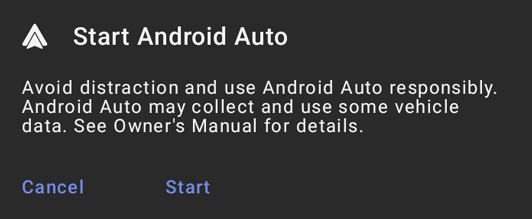
Cancel : To not open.
Start : To open.
HOW TO USE
-
● Displaying the Android Auto screen
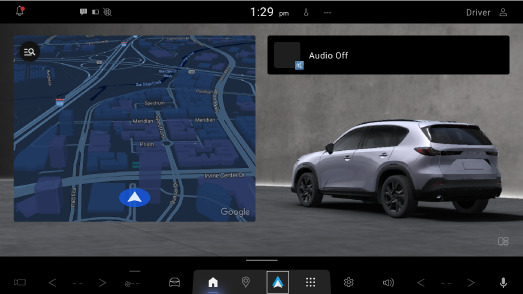
When Android Auto is connected,
 is displayed on the navigation bar.
Touch to display the Android Auto screen.
NOTE
If Android Auto is not connected,
does not appear on the navigation bar. Touch  on the navigation bar and select
  to proceed.
-
● Android Auto screen
You can display the Android Auto screen by touching
on the navigation bar.
NOTE
The media displayed on the Android Auto screen may differ depending on the use conditions and version of the connected Android phone.
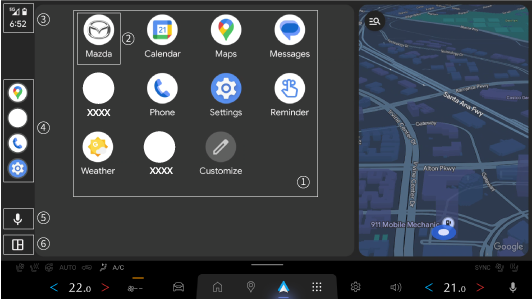
To operate the system, touch the screen.
*Product image for illustration purposes onlyNo. Icon Explanation 1 - Displays the information for each application. The displayed contents differ depending on the application that has been activated and its status. 2 
Returns to the Mazda Connect screen. 3 
Displays notifications from the Android phone. 4 - Displays recently used applications. 5 
Activates Google Gemini. 6 

You can switch between the home screen and the widget screen. -
● Convenient ways to use Android Auto
*1 During music playback with Android AutoItem Operation method To operate using voice Just say, Hey Google”.
(Vehicles with Google built-in)
Press and hold on the steering wheel button to activate Google Gemini on Android Auto.
(Vehicles without Google built-in)
Press on the wteering wheel button to activate Google Gemini on Android Auto.
To display the Now Playing screen Touch the entertainment widget on the Mazda Connect home screen.*1
(Vehicles without Google built-in)
While playing music with Android Auto, touch on the navigation bar to display the Android Auto playback screen.
To display the MAP screen Touch the map widget on the Mazda Connect home screen.*2
(Vehicles with Google built-in)
Touch on the navigation bar while route guidance is being provided using Android Auto to display the Android Auto map screen.
To return to the Mazda Connect screen Touch  on the navigation bar to display the Mazda Connect home screen.
*2 During route guidance with Android Auto -
● End of Android Auto
To exit Android Auto, disconnect the connector cord from the USB port or disable Bluetooth.
DISCLAIMER
Google, Android, Android Auto, Google Maps and other marks are trademarks of Google LLC. Compatible Android phone and compatible active data plan required.
Disclaimer for Gemini:
Check responses. Setup required. Compatibility and availability varies.18+